
The mobile app
Signing in
Workers use the same email and password as the web app. A signed-in phone stays signed in for ninety days, so they are not asked again every shift.
Step by step
- 1
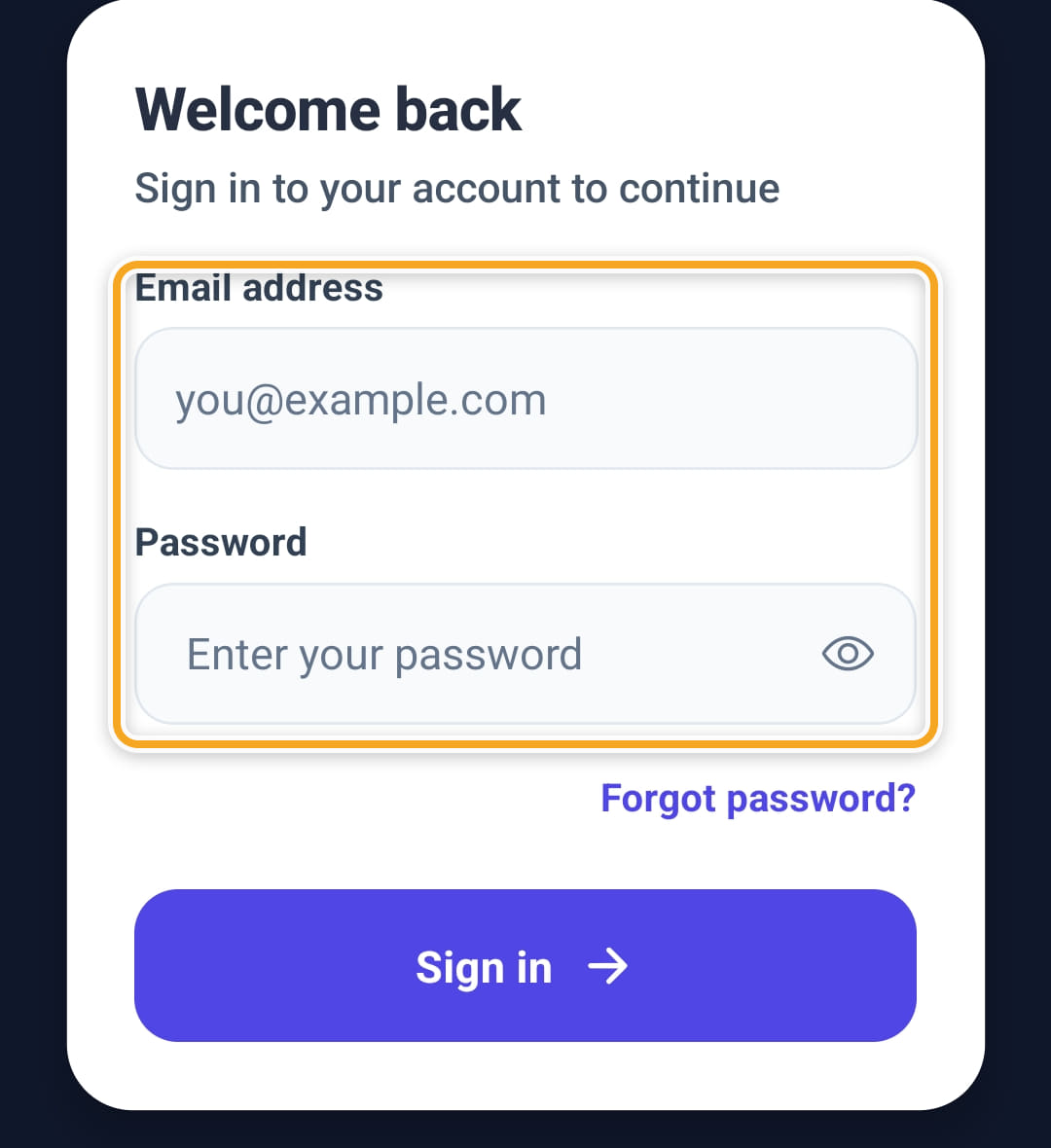
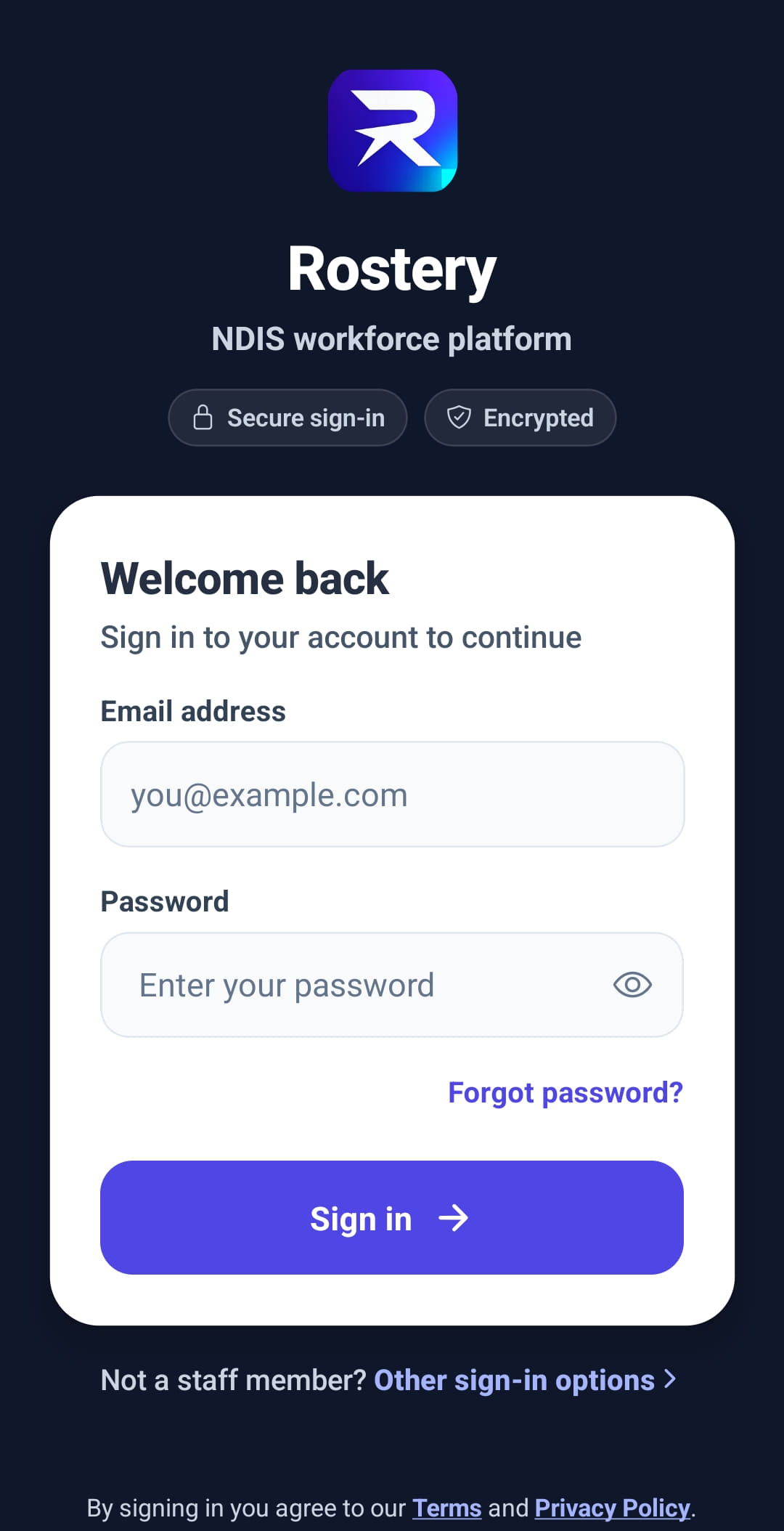
Open the Rostery app, enter the same Email address and Password they use on the web, and tap Sign in.
- 2
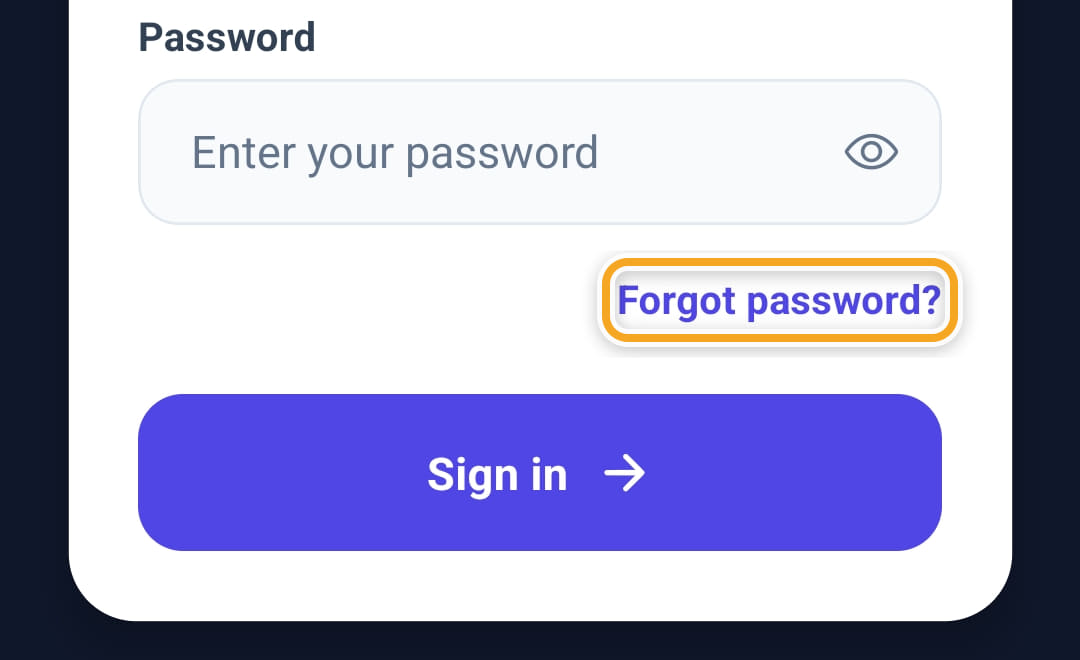
Forgot password? opens the web page where they can set a new one.
- 3
Allow notifications when the app asks, straight after signing in — this is how a new shift, a roster change or a message reaches them.
- 4
Allow location when the app asks, the first time they clock in. Without it a clock-in carries no position, and they will not appear on Tracking.
- 5
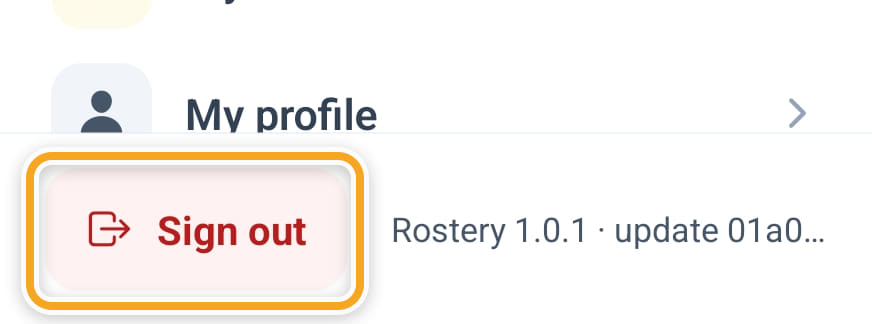
They stay signed in until they sign out, from the bottom of the menu. Signing out ends that session for good; the token cannot be used again.
The screen
Did this answer your question?
If not, talk to us — we answer from Australia, in business hours.