
The mobile app
Availability
Menu → Availability4 steps
Written by Fahid Safdar, Founder & Product, Rostery · Checked
When the worker can and cannot work, so the roster stops offering them the wrong shifts.
Step by step
- 1
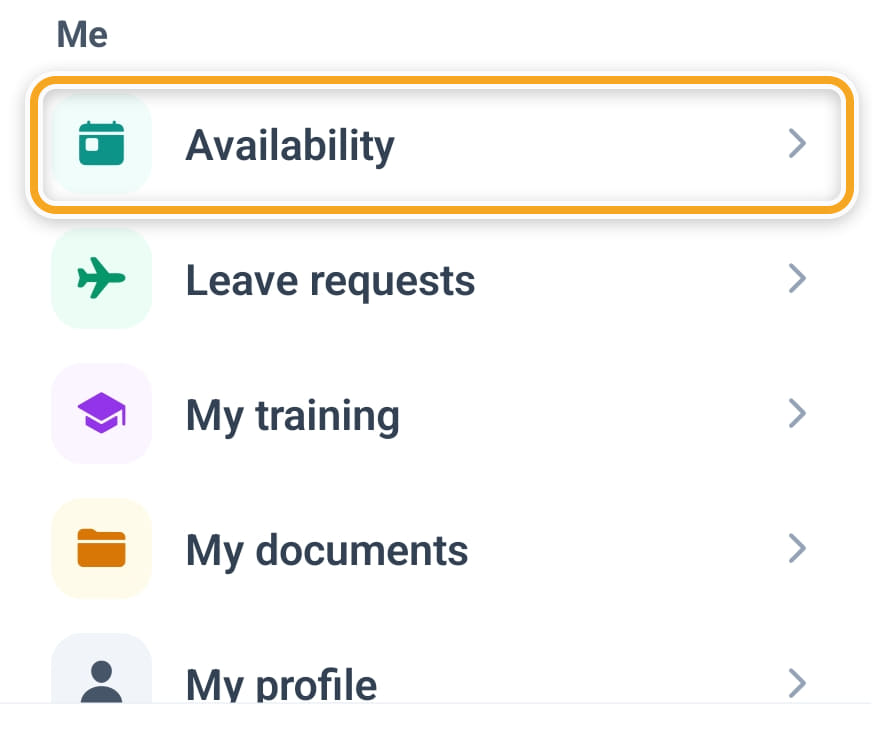
Open Availability from the menu, from Profile, or from Quick actions on Home.
- 2
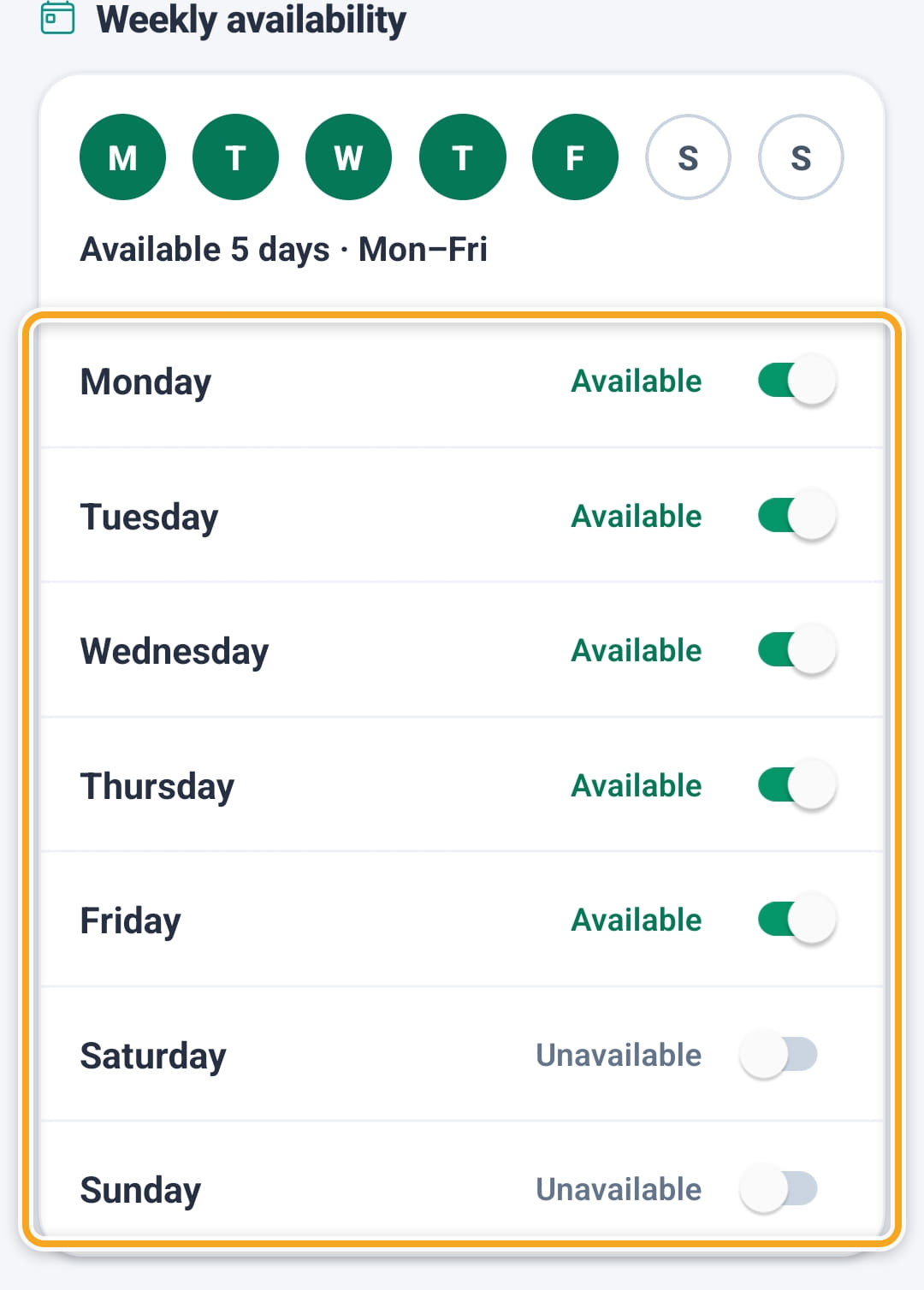
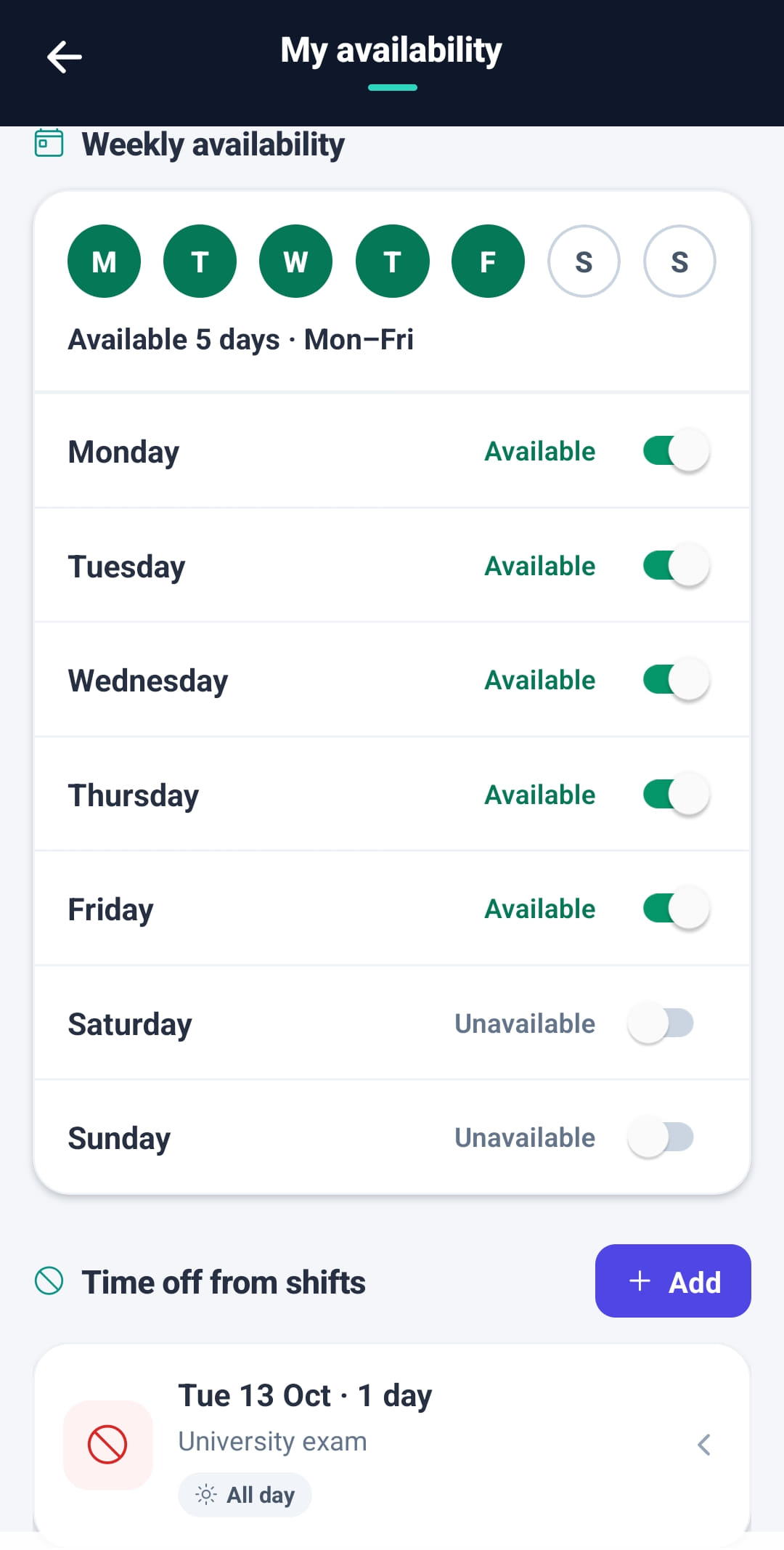
Under Weekly availability, switch each day to Available or Unavailable, then tap Save. The circles at the top sum up the week.
- 3
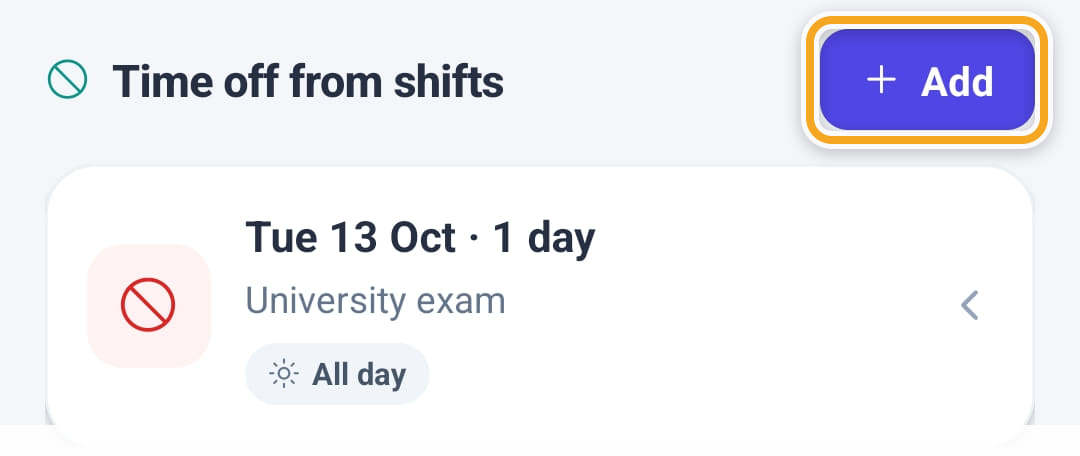
For a stretch they cannot work, tap Add under Time off from shifts, choose when, add a reason if they like, and tap Add period. Each one is listed there.
- 4
AI Auto-Roster and the Scheduling Assistant read this, and the Scheduler warns you before booking someone into a period they marked unavailable.
The screen
Did this answer your question?
If not, talk to us — we answer from Australia, in business hours.