
The mobile app
Home
The worker’s next shift and anything needing them today.
Step by step
- 1
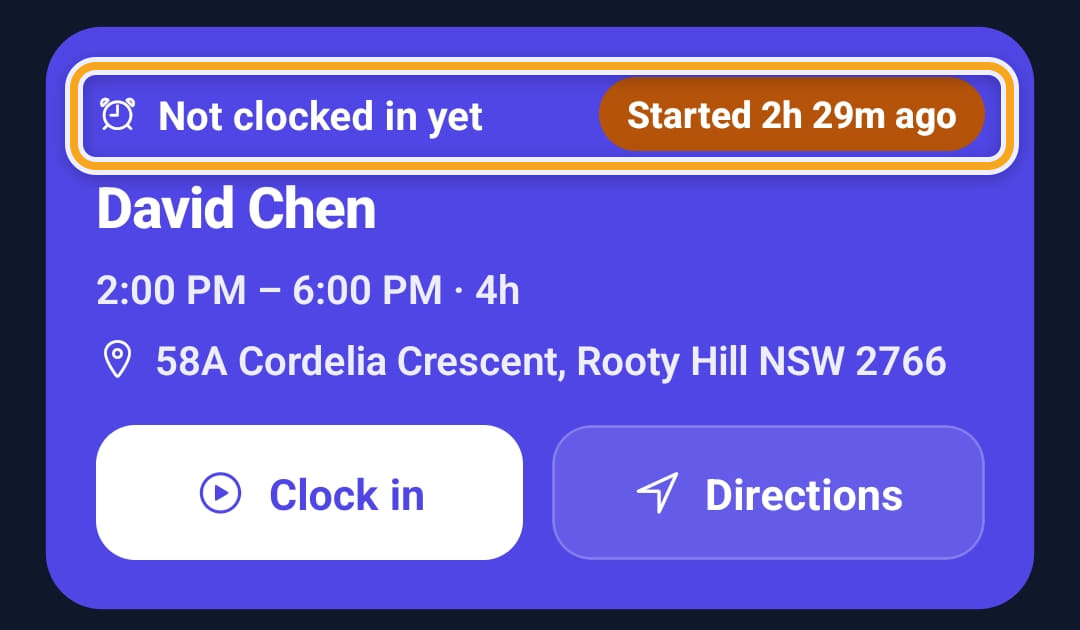
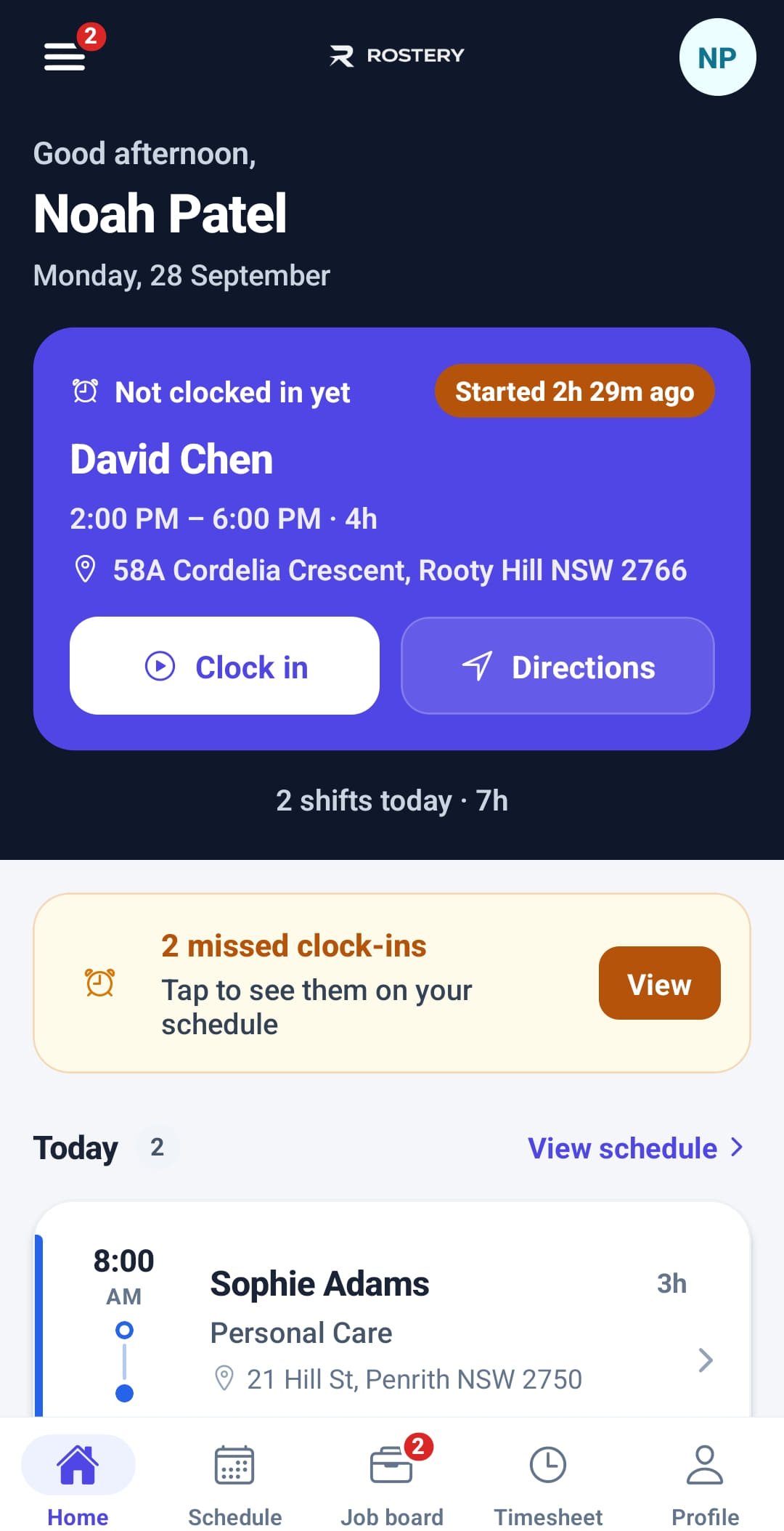
The next shift sits at the top with the participant, the time and the address. Once it has started without a clock-in, it says Not clocked in yet and how long ago it started.
- 2
The buttons under it follow the shift: View shift and Directions before it starts, Clock in once it has started, then Clock out and Add note while they are on shift. Clock in and Clock out open the shift at the clock button.

- 3
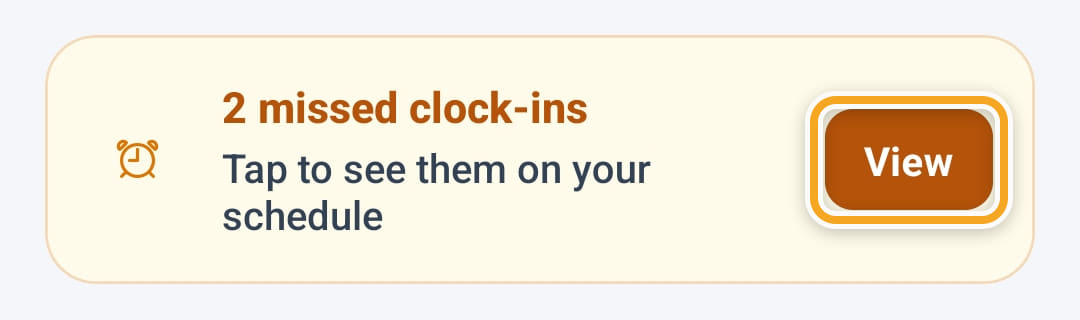
Missed clock-ins are flagged underneath. With one, Clock in opens that shift; with more, View shows them on the schedule.
- 4
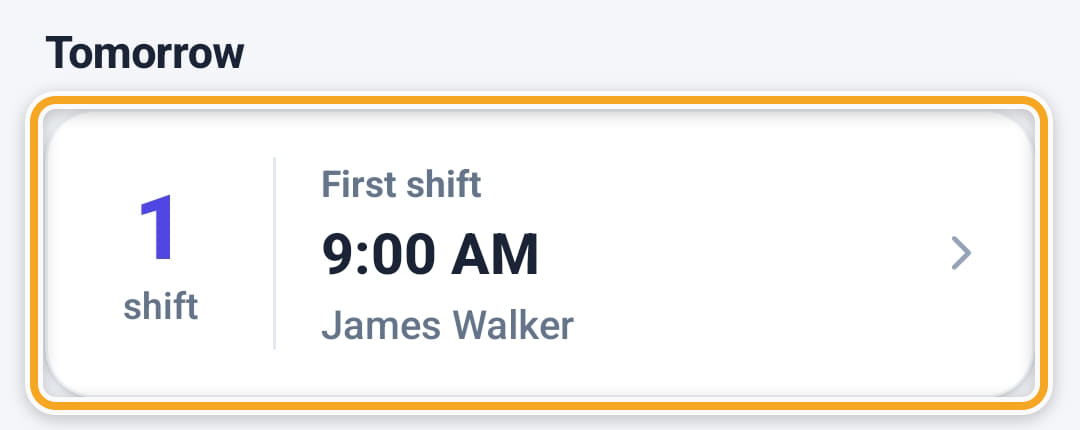
Today lists the day’s shifts — tap one to open it. Tomorrow shows how many there are and when the first one starts.
- 5
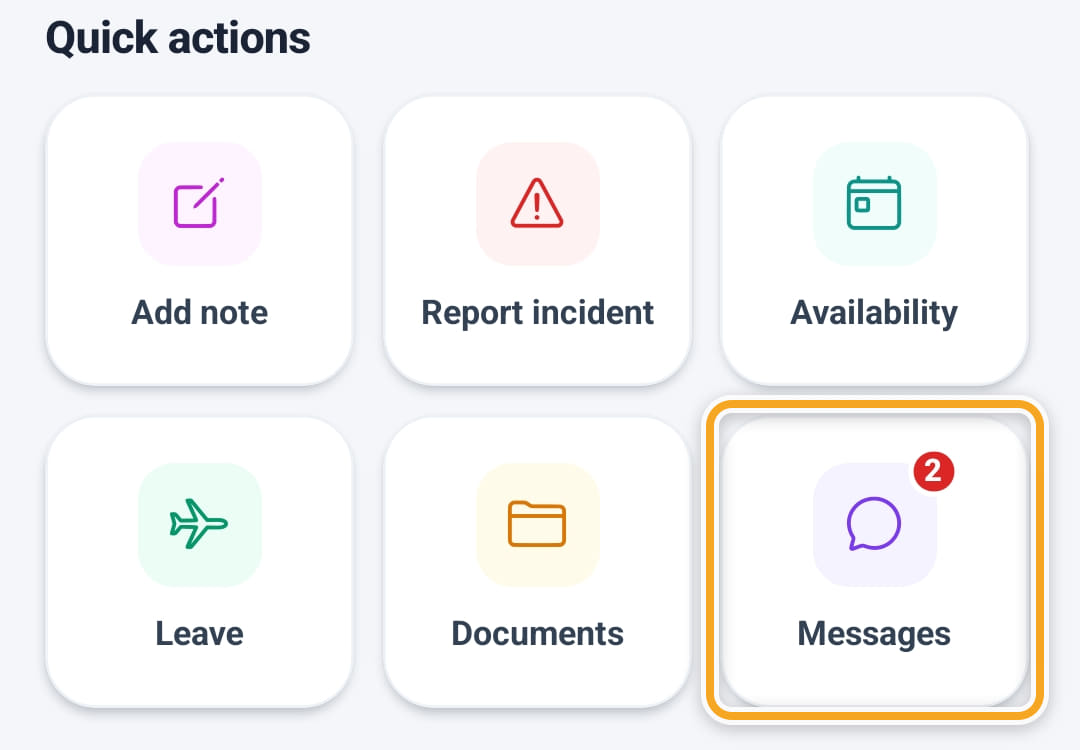
Quick actions holds Add note, Report incident, Availability, Leave, Documents and Messages. Add note and Report incident open on the shift they are on, and the red number on Messages is unread messages.
The screen
Did this answer your question?
If not, talk to us — we answer from Australia, in business hours.