
The mobile app
Clocking in and out
The record that the visit happened, with the time and the place it started and finished.
Step by step
- 1
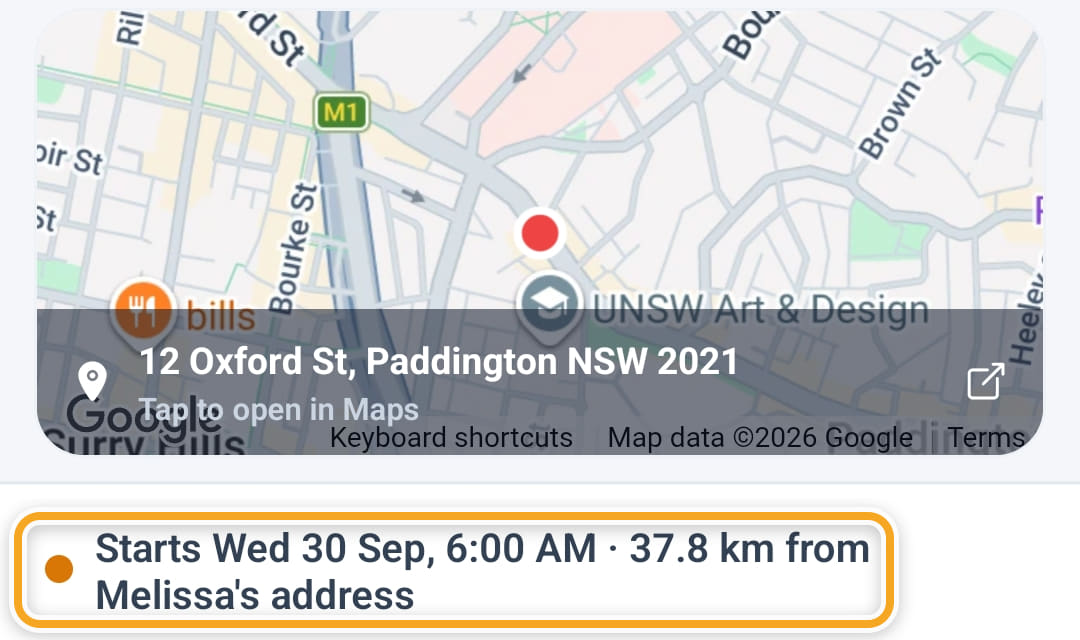
Open the shift. The line above Clock in says when it starts and how far they are from the participant’s address right now — green when they are close enough, orange when they are not.
- 2
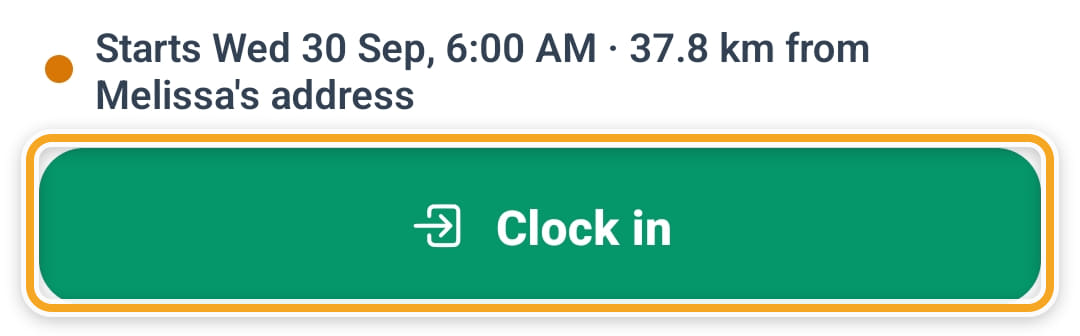
Tap Clock in when they are with the participant. The app records the time and the GPS position.
- 3
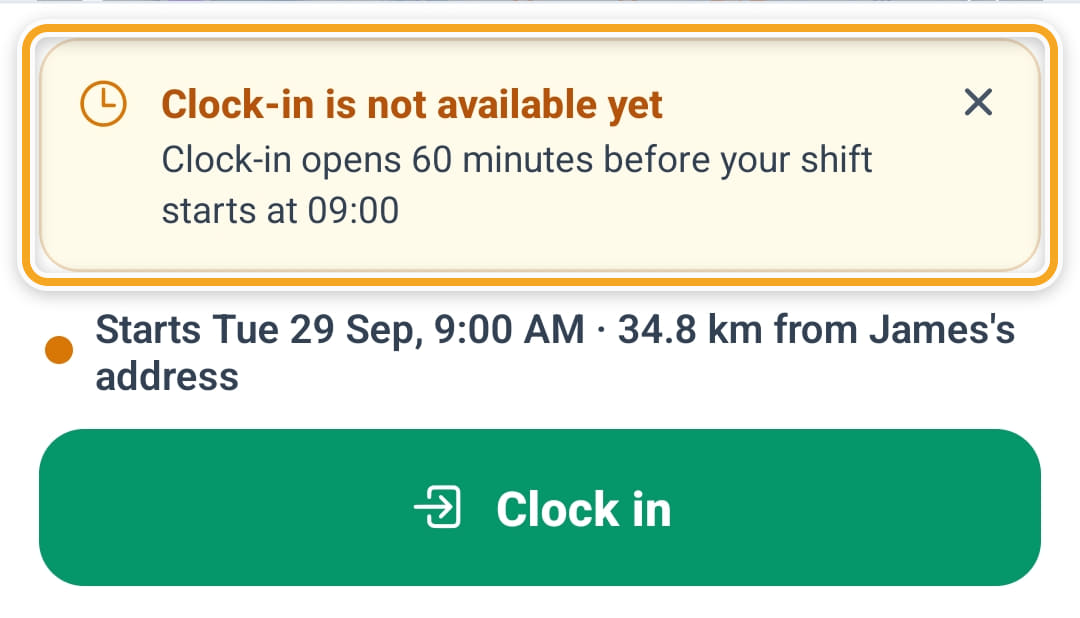
Clock-in is refused, with the reason on screen, if they are further from the participant’s pinned address than your geofence radius, or if the shift is not due yet — by default it opens an hour before the start.
- 4
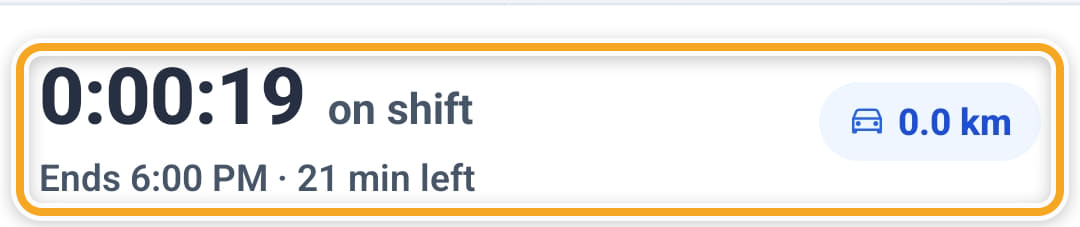
While they are on shift, the header says On shift and a timer counts up, with the time left until the booked finish and the kilometres of any trips logged so far.
- 5
At the end, press and hold Clock out until the button fills. It shows Finding your location… while it records where they are, and the elapsed time becomes the hours on the timesheet, which comes to you for approval.
- 6
If your organisation requires a progress note, Clock out asks for one first and offers Write note.
- 7
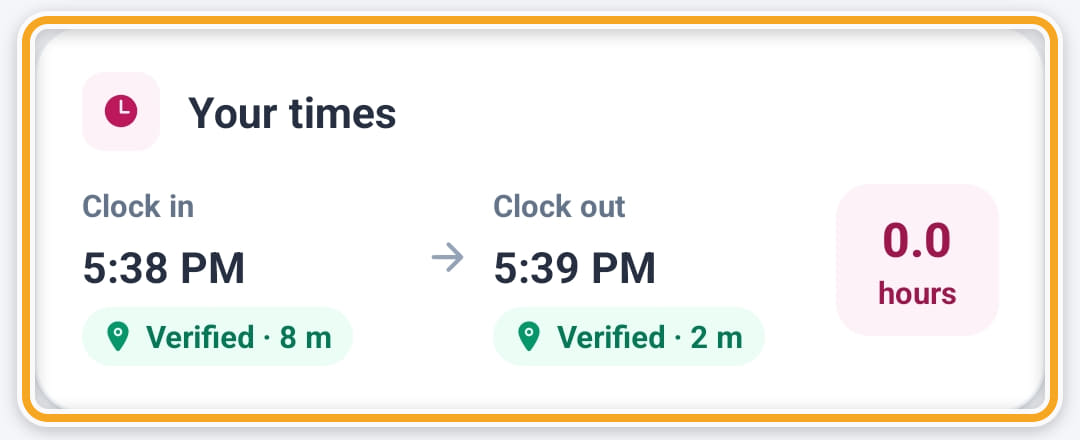
Afterwards the shift says Completed. Your times shows the clock-in and clock-out, how far from the address each one was — Verified when it was inside your radius — and the hours.
- 8
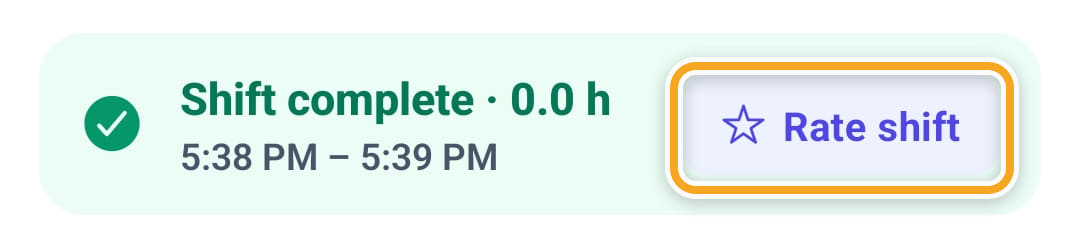
Rate shift, at the bottom, asks how the visit went.
- 9
The distance at each end appears on your EVV screen and the Radius report for review.
Did this answer your question?
If not, talk to us — we answer from Australia, in business hours.