
People
Staff Overview
The first screen when you open a worker. A strip across the top carries Job Title, Phone, Start Date and Email; the chips beside their name say whether they are Active, what role they hold, and whether their worker screening has been checked. Below that the page is a stack of panels — who they are, how to reach them, how they are employed, and what they are qualified to do.
Step by step
- 1
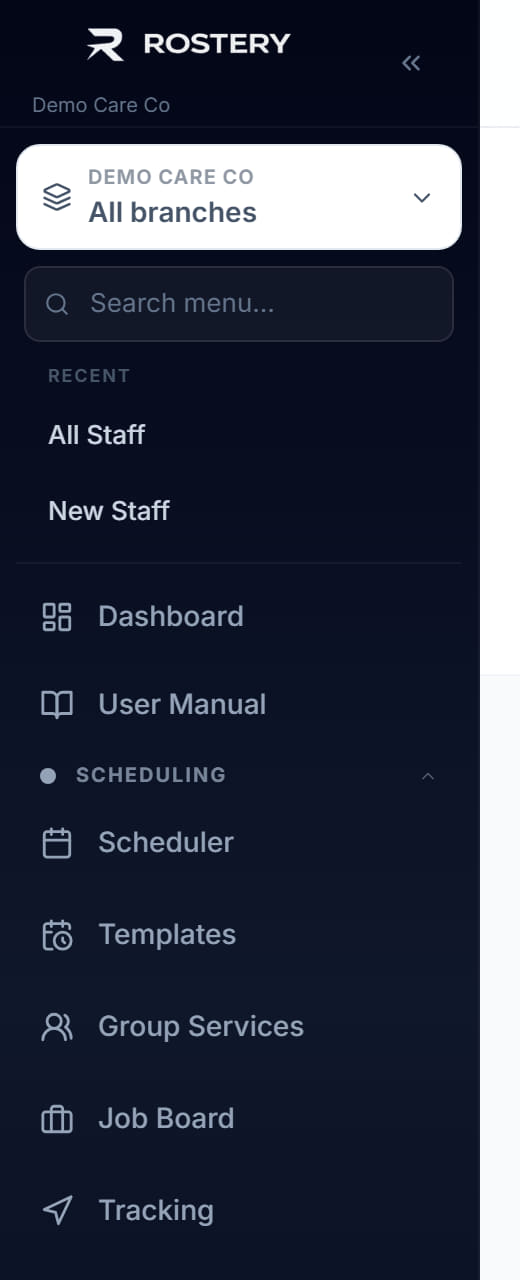
Click Staff in the left menu, then All Staff, and click the worker.
- 2
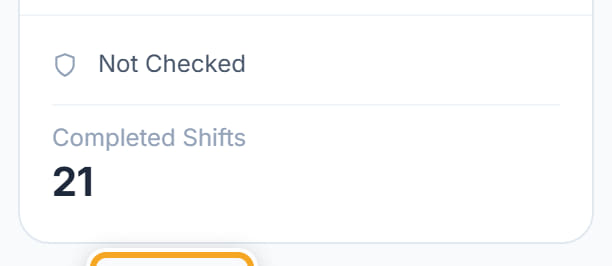
Read the chips beside their name. Active or Inactive tells you whether they can be rostered; the role chip says Carer or Office User; the third says whether the NDIS Worker Screening Check has been verified — "Not Checked" means nobody has confirmed it.
- 3
Read the strip underneath for Job Title, Phone, Start Date and Email. Anything showing "Not set" is a field nobody has filled in.
- 4
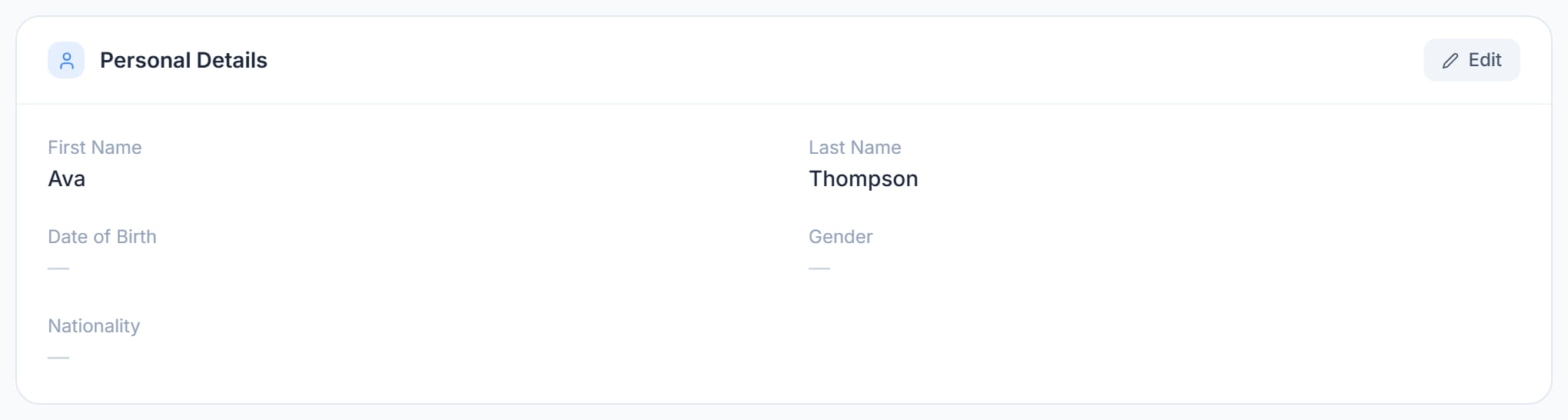
Open Personal Details for First Name, Last Name, Date of Birth, Gender and Nationality. Click Edit to change them.

- 5
Open Contact Information for Phone, Email, Suburb, State and Postcode. The email is how they sign in and how they are invited to the app, so it has to be right and has to be theirs.

- 6
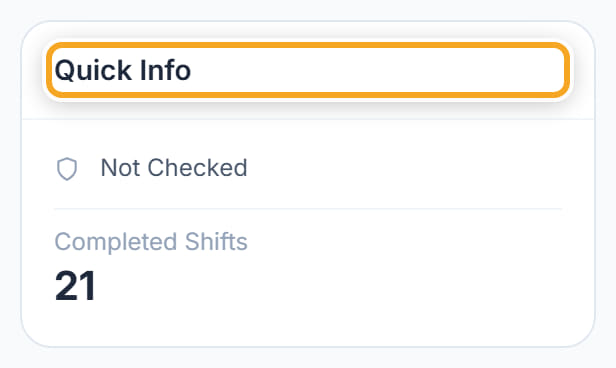
Look at Quick Info on the right for their screening status and how many shifts they have completed.
- 7
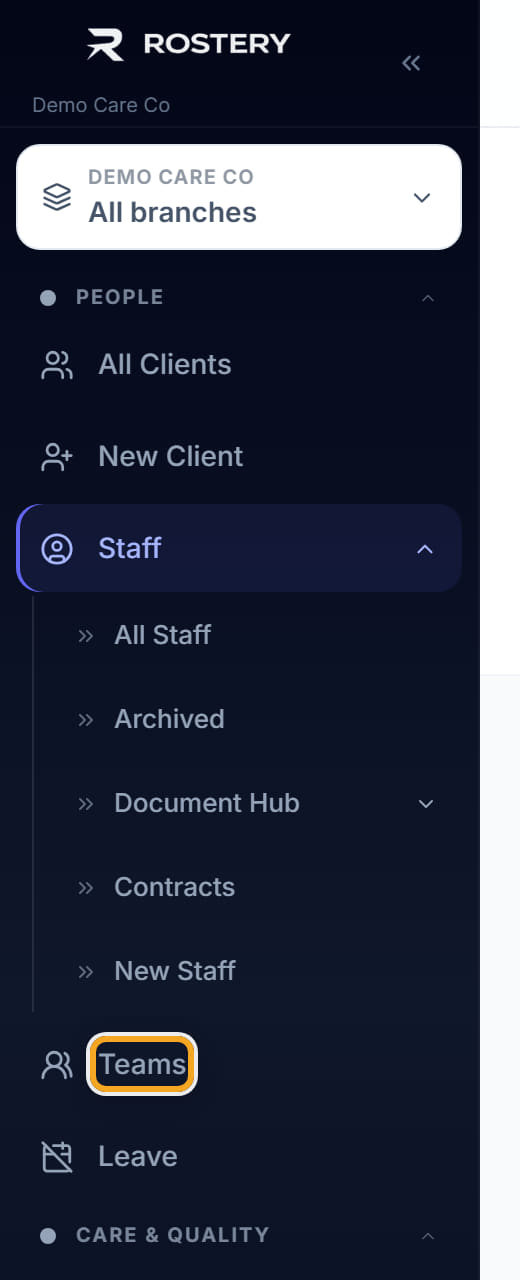
Use Teams, below it, to put the worker in a team. A team narrows the scheduler and the reports to that group.
- 8
Use Manage at the top right for the actions that are not edits — archiving, resending an invitation.
The screen
Did this answer your question?
If not, talk to us — we answer from Australia, in business hours.