
People
Staff Availability
Staff profile → Availability5 steps
Written by Fahid Safdar, Founder & Product, Rostery · Checked
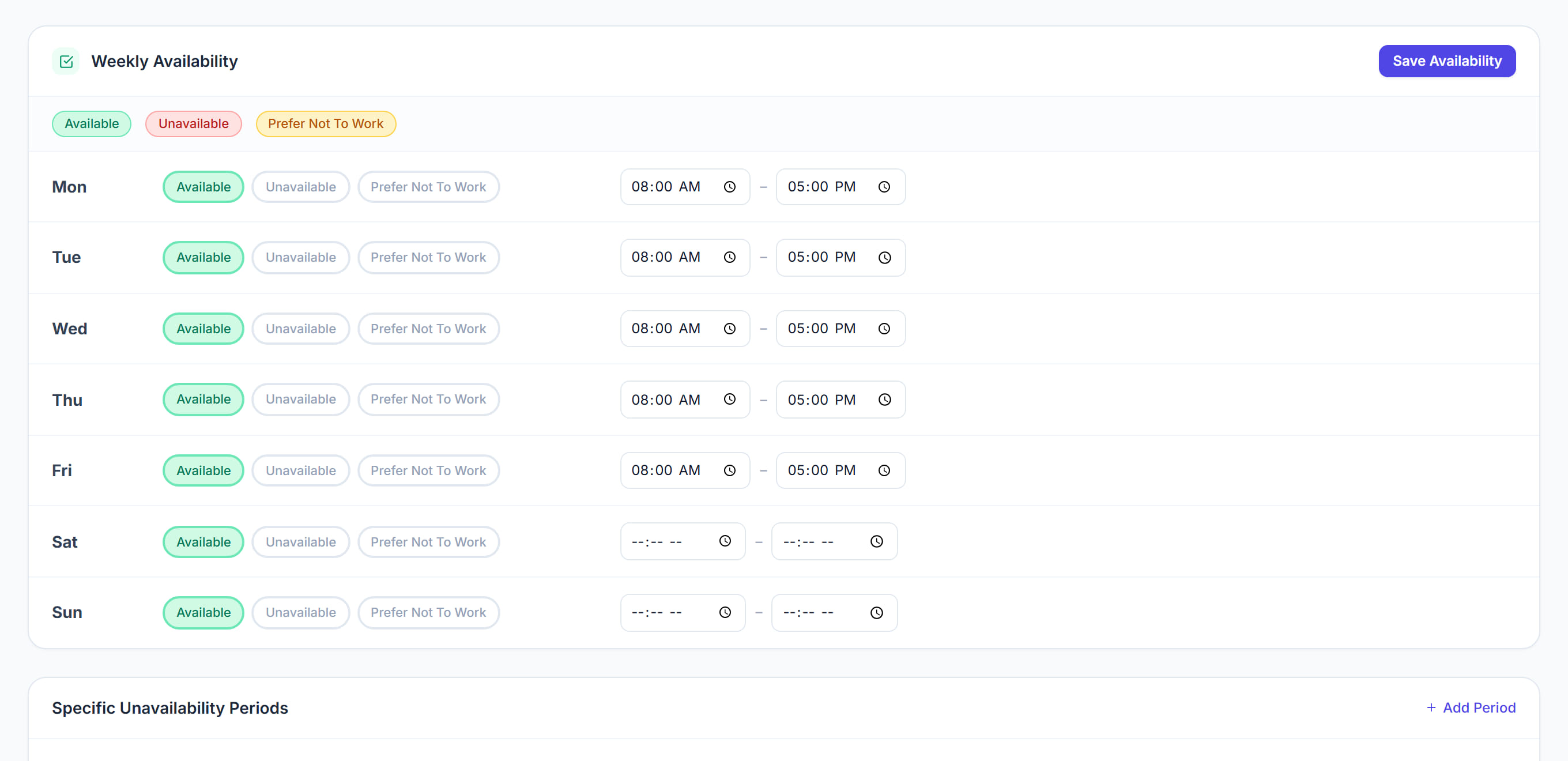
When this worker can and cannot work, as a weekly pattern. Rostery reads it when you build a shift: it warns before booking somebody outside their availability, and it filters the vacant shifts they are shown.
Step by step
- 1
Open the worker and click the Availability tab.

- 2
Set the days and times they can work.
- 3
Mark anything they cannot do — a standing commitment, a day they are never available.
- 4
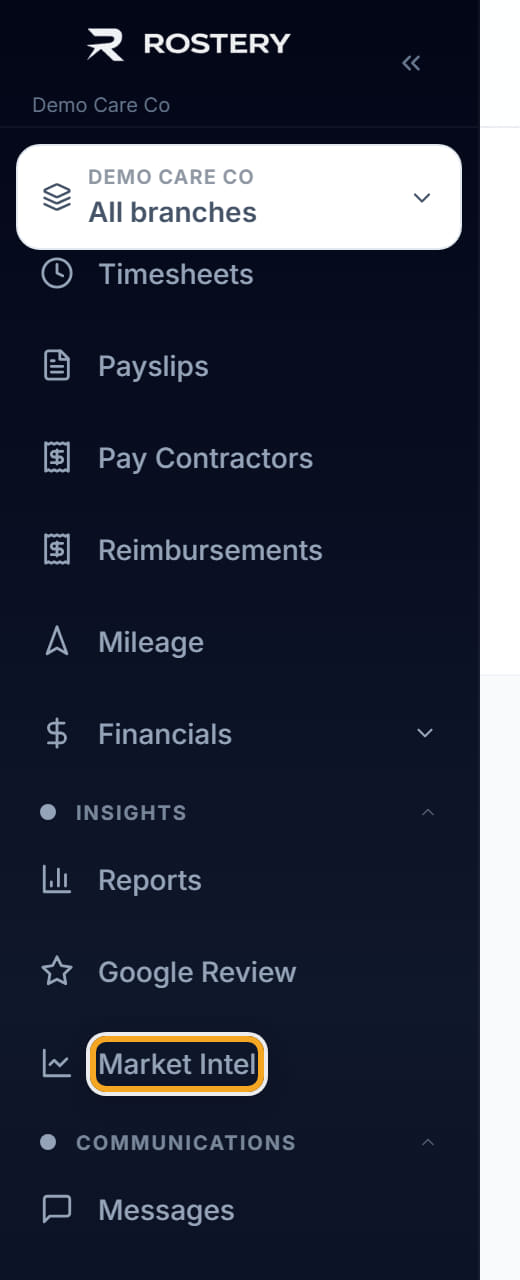
Click Save Availability.

- 5
From now on the scheduler warns when a shift falls outside this, and they stop being offered shifts they cannot take.
The screen
Did this answer your question?
If not, talk to us — we answer from Australia, in business hours.