
People
All Staff
/staff9 stepsEveryone who works for you, with the pay, qualifications, documents and availability that decide what they can be rostered to do and what they are paid for it.
Step by step
- 1
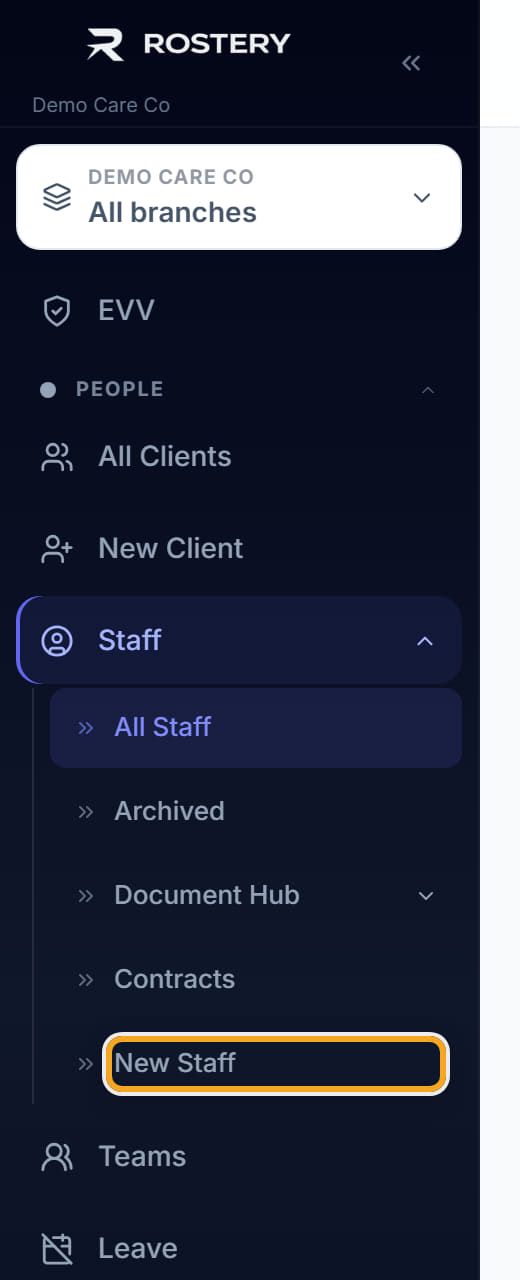
Add a worker with New Staff. Set the employment basis first — full time, part time, casual or contractor — because it decides which pay engine applies to every shift they ever work.
- 2
Attach them to a pay group. The pay group carries the SCHADS level and the base hourly rate their pay is calculated from. A worker with no pay group is paid nothing, silently, so this is not optional.
- 3
For a contractor, fill the rate card instead. Contractors are not on the SCHADS award: they use flat rates per day type, and superannuation applies only if you tick that it does.
- 4
Load their qualifications with expiry dates — NDIS Worker Screening Check, First Aid, CPR, Police Check, Driver Licence. The list is shared with Qualification Match, so what you record here is what the roster ranks them on.
- 5
Set availability so the Scheduler stops offering them shifts they cannot work, and so the recommendation list is worth reading.
- 6
Set the Hour Cap if this worker has a maximum. The column is on the list, and it is what stops a casual drifting into hours you did not intend.
- 7
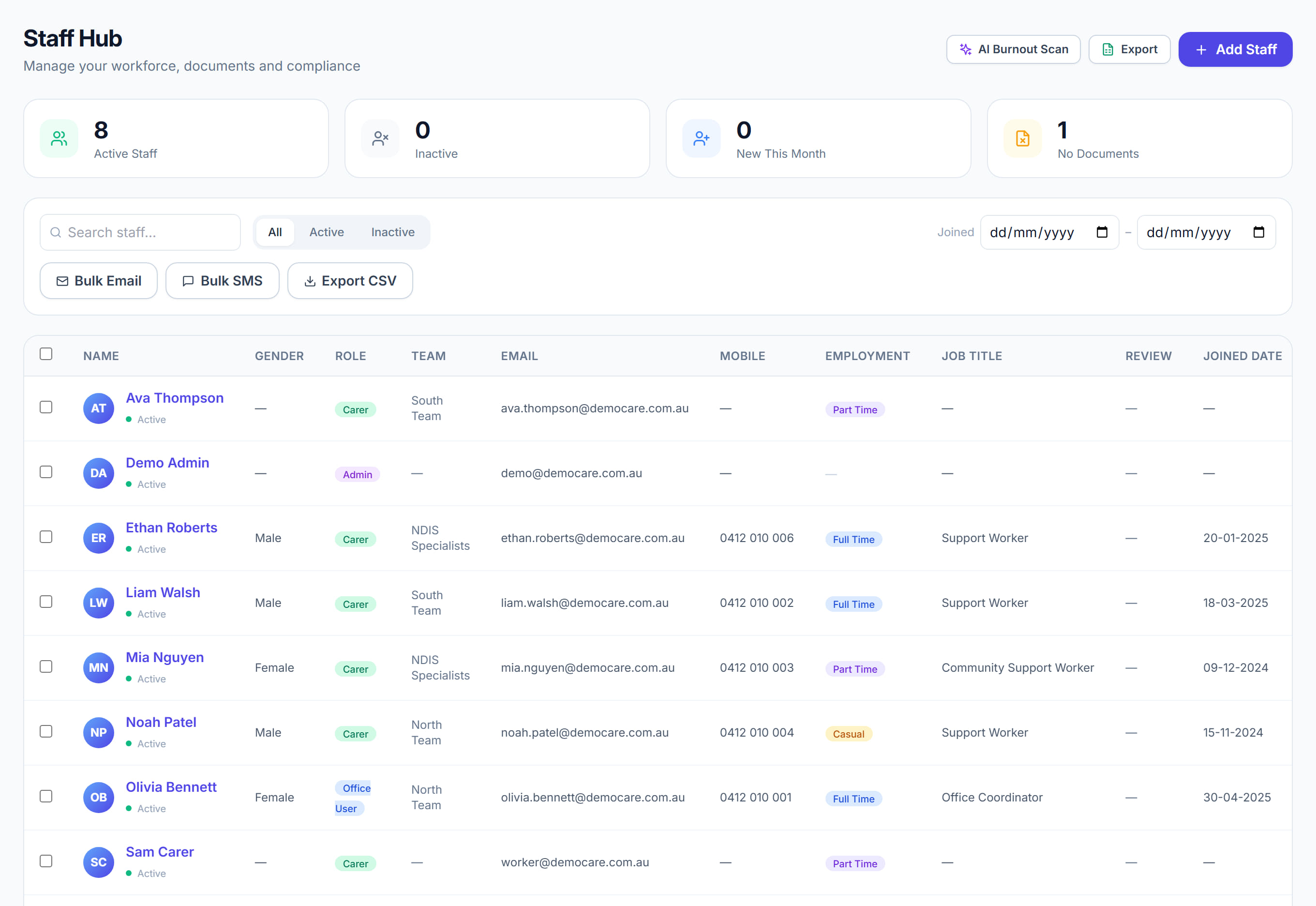
Use the list columns to answer compliance questions quickly: No Documents shows who has nothing on file, Review shows who is due, Onboarding shows who is not finished, and Last Login shows who has never actually used the app.

- 8
Export CSV produces the staff list for payroll onboarding or an audit request.
- 9
Archive a worker who has left rather than deleting them. Archiving keeps their shifts, timesheets and notes intact — which you are required to retain — while removing them from every picker.
The screen
Did this answer your question?
If not, talk to us — we answer from Australia, in business hours.