
How do I…?
Add a new support worker
Setting up a worker so they can be rostered and paid.
Do this
- 1
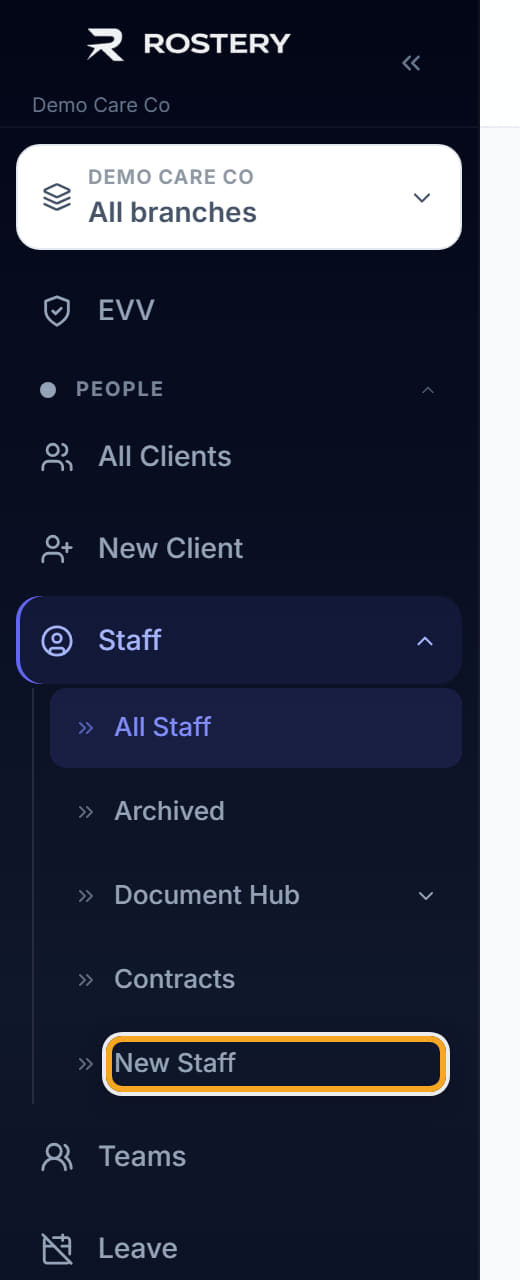
Click Staff in the left menu.

- 2
Click New Staff at the top right.
- 3
Under Personal Information, type their First Name, Last Name and Email. Those three are required — the email is also how they are invited to the app.

- 4
Add their Phone, Address, Date of Birth and Gender if you hold them.

- 5
Under Role & Access, set the Role. This decides what they can see: a support worker sees their own shifts, an office user sees the whole roster.

- 6
Set the Employment Type — full time, part time, casual or contractor. It decides which pay rules apply.

- 7
Set the Start Date, and an End Date only if the engagement is fixed.

- 8
Click Save.
- 9
Now open the worker you just created and set their Pay Group on the Overview tab. It is not on this form, and a worker with no pay group can be rostered and will be paid nothing, with no warning.
- 10
Then add their qualifications and checks under Documents, each with its expiry date.
Did this answer your question?
If not, talk to us — we answer from Australia, in business hours.