
Plan Management
Reconcile
/plan-management?view=reconcile6 stepsMatching what the NDIA actually paid against what you claimed — the step that finds the money you did not receive.
Step by step
- 1
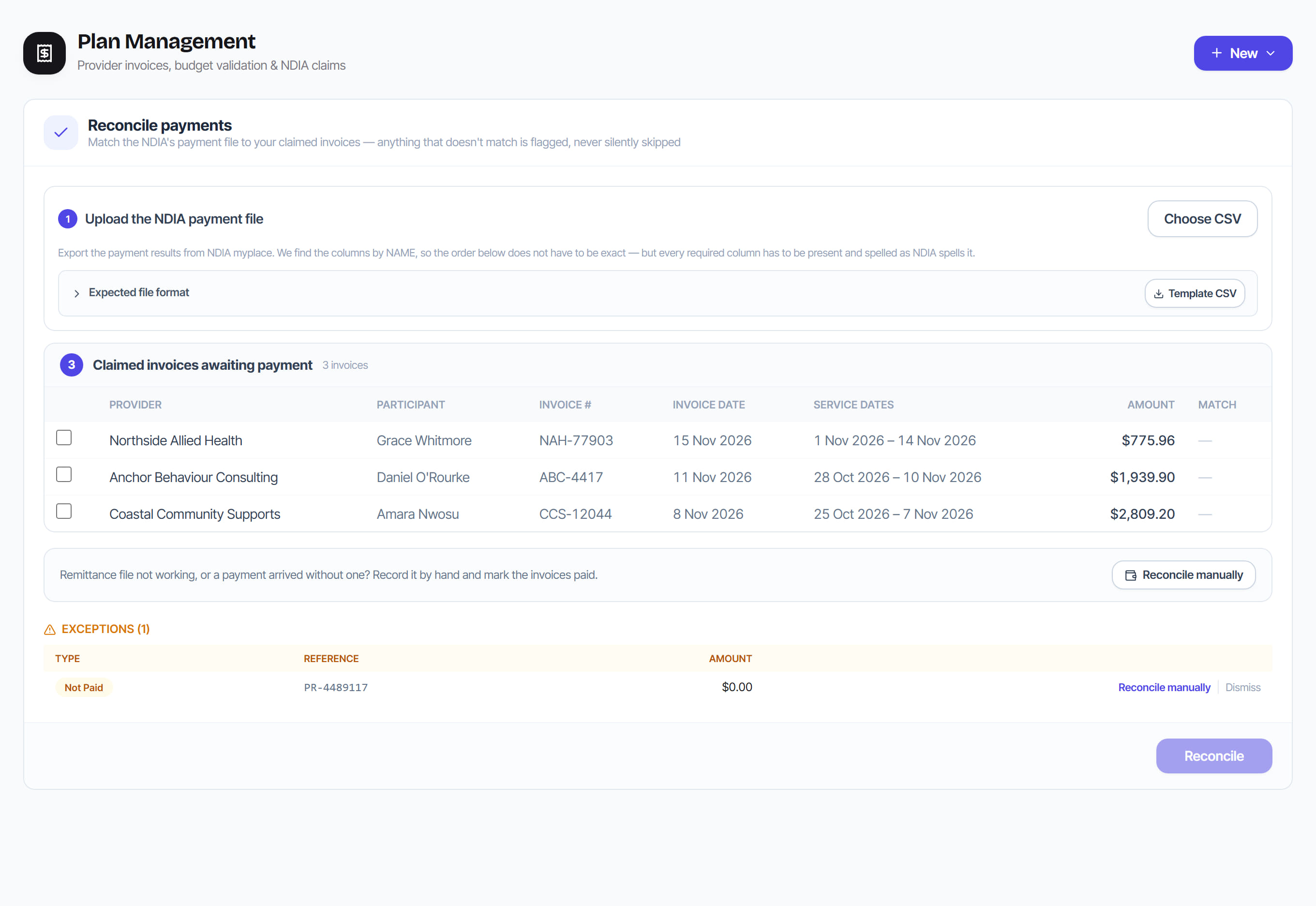
Download the payment results CSV from the NDIA myplace provider portal and upload it as it is — do not open and re-save it in Excel first, which turns the registration and NDIS numbers into 4.05E+09. Rostery reads the columns by name (including the spaced ones like "Payment Request Number") and shows how many lines it read, and how many the NDIA refused, before you commit to anything.

- 2
Review the preview. Each line shows its claim reference, the amount paid and the NDIA’s Payment Request Status. Lines in red were NOT paid by the NDIA.
- 3
Run the reconciliation. A line is matched to the invoice line whose claim reference it carries — the reference Rostery wrote into the claim file. If the reference is not one Rostery issued (for example a claim lodged directly in the portal), it falls back to a claimed invoice with the same amount, but only when the participant, the support item and the service period in the file agree with that invoice. An invoice is marked paid when every line on it has been paid, and the NDIA’s Payment Request Number is kept against it.
- 4
Work the exceptions. Each one says why: rejected (the NDIA refused the line — its own error message is shown), mismatch (an invoice for that amount is waiting but it is for a different participant, item or period — a weekly SIL invoice is the same amount every week, so an amount alone never marks a week paid), part payment, unmatched (no invoice for that amount), ambiguous (more than one). None is ever silently dropped.
- 5
Where the file cannot match a payment — a rounded amount, a missing reference, a bank PDF that will not parse — reconcile it by hand: tick the invoices it covers and give a reason. The amount is optional — enter what was received if you know it, or leave it blank and the selected invoices are recorded as paid in full. Manual reconciliation is deliberately more audited than the automatic path, because it is exactly where an error or a fraud would be introduced.

- 6
Resolve each exception so the register is clean before month end.
The screen
Did this answer your question?
If not, talk to us — we answer from Australia, in business hours.